Settings Panel

The Settings Panel allows you to modify deeper-level functionality and behavior in OpenSpace. It can alter the speed of flight or time transitions, set which items are shown on the Dashboard, or set module parameters.
Note
Each setting in the Settings Panel will be discussed in detail elsewhere in this guide. Here, we merely list the setting categories and give a brief description of their function.
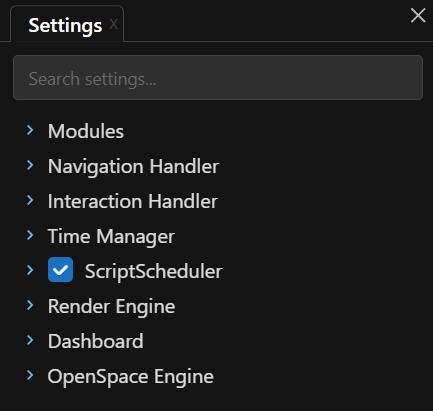
OpenSpace’s Settings Panel.
Modules
GlobeBrowsing |
Path to the image used for GeoJSON locations on the globe. |
CefWebGui |
These options control the graphical user interface, including its visibility and scale. |
Exoplanets |
Settings for the Exploplanet Systems Panel. |
Molecule |
Options that control the molecule module. See RenderableMolecule for more information. |
SkyBrowser |
Settings for the SkyBrowser Panel, mainly controlling the speed of animations when slewing on the sky. |
Interaction Handler
Mouse Interaction Visualizer |
Shows a visual cue for the distance the mouse has moved since being pressed. |
Touch markers |
Displays markers that respond to touch interactions. |
Invert left and right mouse buttons |
If checked, the right mounse button is considered the primary button. |
Disable all joystick inputs |
Prevent joystick inputs from affecting the camera. |
Disable all touch inputs |
Prevent touch inputs from affecting the camera. |
Time Manager
Default time interpolation duration |
Duration it takes to interpolate between two times. |
Default delta time interpolation duration |
Set the time between the timesteps specified in the profile and controlled via the |
Default pause interpolation duration |
Sets the length of time between the simulated time and a pause of time. |
Default unpause interpolation duration |
Sets the length of time over which the simulation goes from zero to the set time. |


ScriptScheduler
Enables or disables the ScriptScheduler. No scheduled scripts are executed if disabled. A more advanced topic, such scripts control time-evolving models and data, such as the opening of the JWST solar panels, to name one.
Render Engine
Global Blackout |
Fade the graphics to and from black, or fade to an image of your choice. |
Windowing |
Controls the horizontal field of view. |
Show the on-screen log |
Sets whether the on-screen log is shown at startup. |
Shows the version on-screen information |
Toggles the on-scereen version in the lower-right corner of the applicaiton. |
Shows camera information |
The current camera information is displayed in the upper-right of the application window. |
Hue |
Alters the hue of the graphics. |
Saturation |
Sets the saturation of colors in the graphics window. |
Value |
Sets a brightness value for the graphics. |
Framerate Limit |
Set a limiting framerate. A value of zero (0) indicates an unlimited framerate. |
Dashboard
Each of these options adjust the Dashboard, the information in the top-left of the application window.
Date |
Show the date, and set the date format. |
Simulation Increment |
Show the simulation time increment, “5.0 Minutes / second” for example. |
Distance |
Show the distance from your position (the camera’s position) to the focus, and change the source and destination objects for the distance measurement. |
Framerate |
Displays the framerate in frames per second (FPS). By default, shows the average framerate, but you can set what it shows here. |
Parallel Connection |
Displays only if OpenSpace is directly connected to other OpenSpace instances. Once connected, this shows how many connections are present and who controls the session. |
Globe Location |
Lists the position of the target. |
Enabled |
Determines whether the Dashboard is displayed. |
Start position offset |
Sets the position of the Dashboard on the screen. |
OpenSpace Engine
Property visibility |
This determines which properties are visible in the Scene Panel according to which user role in the menu is chosen. The more expertise a user role possesses, the more properties are visible in the Scene Panel. |
Disable all mouse inputs |
Disables the mouse as an input device. |