Toolbar

The Toolbar appears at the bottom of the OpenSpace window and gives you quick access to the panels that enable data manipulation, navigation, time control, and many other OpenSpace functions.
Note
The toolbar above shows all the possible panel options, set via the Top Bar’s View menu. When you start OpenSpace, the default Toolbar is abbreviated:

Add other panels using the Menu.
Toolbar Panels
|
Scene Panel |
A hierarchial listing of all the data sets in your OpenSpace session. |
|
Navigation Panel |
Target and navigate to objects. |
|
Time Panel |
Change the date and time, and alter the rate of time. |
|
Actions Panel |
A library of buttons, or marcos, that perform one or many OpenSpace tasks. |
|
GeoLocation Panel |
Locate places on Earth, navigate to them, and save them as scenes. |
|
SkyBrowser Panel |
A tool that interactively connects OpenSpace to night sky imagery, including all-sky images and images from space telescopes. |
|
Exoplanet Systems Panel |
Visualize the planets and habitable zones in exoplanetary systems. |
|
Night Sky Panel |
Night sky simulator with tools to understand the motions of the sun, moon, planets, and stars throughout the course of the day and year. |
|
Mission Panel |
Page coming soon… |
|
Record Panel |
Record a session’s flightpath and playback or render the flight. |
|
Screenspace Renderables Panel |
Add images, video, or webpages that exists as a slide overlay in OpenSpace, |
|
Keybinds Panel |
Shows all the active keyboard bindings for the currently loaded profile. |
|
User Panels |
Custom panels that are developed by users which allow custom functionality within OpenSpace. |
|
Tour Panel |
Displays an interactive, getting started tour of OpenSpace. |
|
Settings Panel |
A general description of the settings panel items. |
|
Flight Control Panel |
Enables flight controls in an external web browser window. |
|
Assets Panel |
Page coming soon… |
|
Globe Imagery Browser Panel |
Page coming soon… |


Customizing the Toolbar
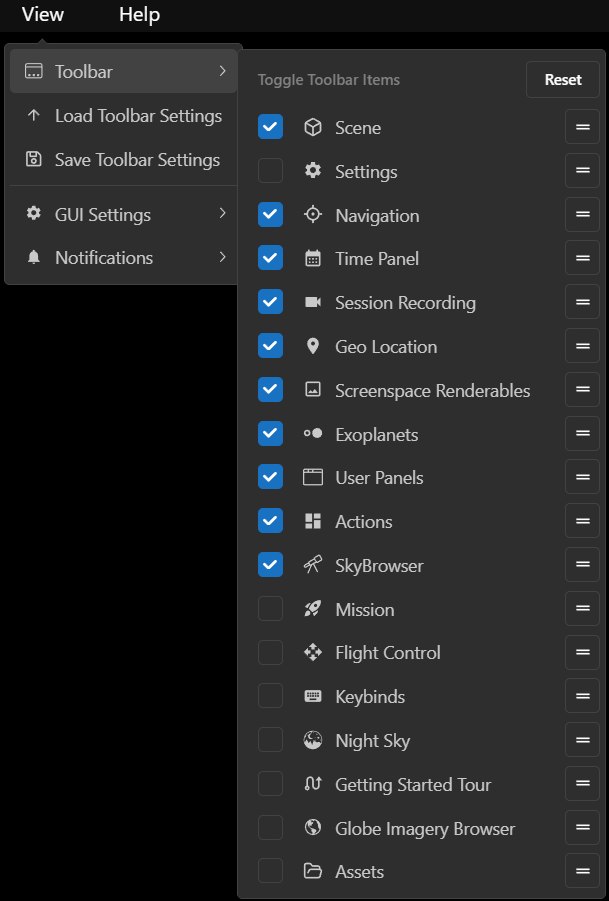
The Menu in OpenSpace, displying options for customizing the Toolbar. The checked panels shown here are on by default upon starting up OpenSpace.
Use the Menu to add, subtract, or reorder panel buttons on the Toolbar.
Check the item on and off to add or subtract the panel from the Toolbar. Use the reorder button,  , to rearrange the panel buttons on the Toolbar. The Button returns the Toolbar to its default state.